GarageBand vs FL Studio: Which Music-Making App Is Right for You?
Creating music on your computer or phone is easier than ever, thanks to apps like GarageBand and FL Studio. These two programs, known as Digital Audio Workstations (DAWs), help everyone from beginners to pros make songs, beats, and podcasts. If you’re wondering which one to pick, this guide breaks it down in a way that’s simple to understand, even if you’re new to music production. We’ll look at what each app does, how they work, their strengths and weaknesses, and how to get started. By the end, you’ll know which one fits your needs—whether you’re jamming on your Mac or crafting beats on a Windows PC.
What Are GarageBand and FL Studio?
Before diving in, let’s get a quick sense of what these apps are. Both are tools for creating, editing, and mixing music, but they’re built for different kinds of users and devices.
GarageBand
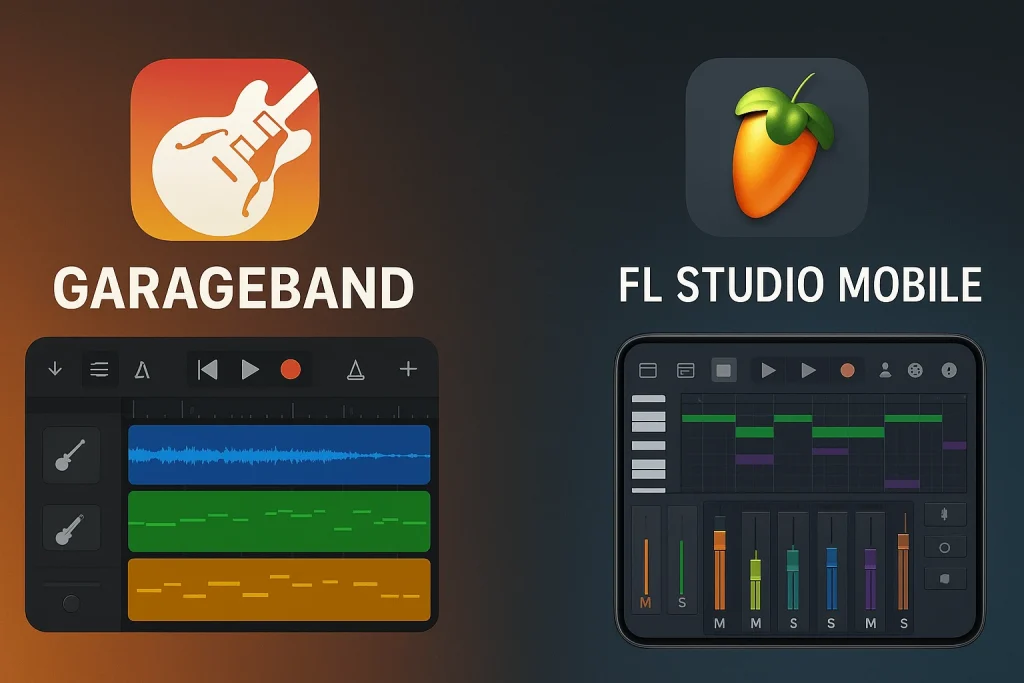
Made by Apple, this app is free for anyone with a Mac, iPhone, or iPad. It’s designed to be super easy to use, perfect for beginners or hobbyists who want to make music without a steep learning curve. Think of it as a fun, ready-to-go music playground with tons of built-in sounds and loops. Apple’s team in Cupertino, California, created this app to make music creation accessible to everyone.
FL Studio
Developed by Image-Line, a company based in Belgium, FL Studio is a paid app available for Windows, macOS, and even mobile devices. It’s a favorite among professional producers, especially for electronic music like hip-hop, EDM, or trap. It’s more complex but gives you way more control and flexibility.
Both apps are awesome, but they’re like different instruments—one’s a ukulele (simple and fun), and the other’s a full-blown synthesizer (powerful but takes practice). Let’s explore how they compare.
Features: GarageBand vs FL Studio
GarageBand’s Features
GarageBand is like a starter kit for music-making. It comes with a clean, easy-to-navigate interface that feels familiar if you’ve used other Apple products. Here’s what you get:
FL Studio’s Features
FL Studio mobile APK is like a pro-level studio in your computer. It’s packed with tools for those who want to dive deep into music production. Here’s what stands out:
Why Choose One Over the Other?
Why GarageBand?
GarageBand is perfect if you’re just starting out or want to make music without spending money. Since it’s free on Apple devices, there’s no cost barrier, which is great for students or hobbyists. The app’s simplicity means you can start making songs in minutes, even if you’ve never touched a DAW before. For example, you can grab a drum loop, add a piano melody, and record your voice—all in an afternoon.
It’s also awesome for podcasters or anyone recording live instruments, like a guitar or vocals, because it integrates so well with Apple’s ecosystem. If you’re on a tight budget or just want to have fun making music, GarageBand is hard to beat. Plus, its built-in sounds are high-quality, so your tracks can still sound professional without extra gear.
Why FL Studio?
FL Studio shines if you’re serious about music production or want to create complex electronic tracks. Its flexibility makes it a favorite for genres like hip-hop, EDM, and trap, where precise beat-making and sound design are key. For instance, producers like Metro Boomin and Murda Beatz use FL Studio to craft chart-topping beats.
The app’s ability to handle VST plugins means you’re not limited to the default sounds—you can add new synths or effects to match your style. The lifetime free updates are a huge bonus, ensuring your software stays current without extra costs. If you’re ready to invest time (and a bit of money) to learn a powerful tool, FL Studio can take your music to the next level.
Technical Details: How Do They Work?
GarageBand’s Technical Side
GarageBand is exclusive to Apple devices (macOS, iOS, iPadOS). It’s optimized to run smoothly on Macs and iPhones, even older models like a MacBook Air from a few years ago. The app uses a fixed 44.1 kHz sampling rate, which is fine for most music but might need resampling for professional projects (like film scoring, which often uses 48 kHz). You can’t tweak buffer sizes or other low-level settings, which keeps things simple but limits advanced users.
GarageBand supports Audio Units (AU) plugins but not VSTs, so your add-on options are more limited compared to other DAWs. It also doesn’t support external MIDI instruments directly, which could be a drawback if you rely on hardware synths. Storage-wise, GarageBand’s loops and instruments can take up a lot of space (several gigabytes), and you can’t delete unused ones to free up room.
FL Studio’s Technical Side
FL Studio pc works on Windows, macOS, and mobile devices, making it more versatile. It supports sampling rates up to 192 kHz and lets you adjust buffer sizes for better performance, which is great if you have a powerful computer. The app comes in different editions, from the basic Fruity Edition ($99) to the All Plugins Edition ($499), so you can choose based on your budget.
Its interface is modular, with windows like the Channel Rack, Piano Roll, and Mixer that you can move around or resize. This is awesome for multi-monitor setups but can feel overwhelming at first. FL Studio supports VST, VST3, and AU plugins, giving you access to a huge range of third-party sounds. It also handles MIDI controllers with ease, making it ideal for producers who use hardware.
Installation Guide: Garageband vs fl studio
Installing GarageBand
Since GarageBand comes pre-installed on most Apple devices, you usually don’t need to download it. If it’s not on your Mac, iPhone, or iPad, here’s how to get it:
- Open the App Store on your Apple device.
- Search for “GarageBand.”
- Click Download (it’s free!). The app is about 1.5 GB, so make sure you have enough storage.
- Once installed, open GarageBand from your Applications folder (Mac) or home screen (iOS/iPadOS).
- Start a new project by choosing “Empty Project” or a template like “Hip Hop” or “Electronic.”
You’ll need an Apple ID to download, and it works best on macOS Catalina or later. If you’re using an older Mac, check compatibility on Apple’s website.
Installing FL Studio
FL Studio requires a purchase, but you can try a free demo (with some limitations, like not being able to reopen saved projects). Here’s how to set it up:
- Visit the Image-Line website.
- Choose your edition (e.g., Fruity, Producer, or Signature) and buy or download the demo.
- Download the installer for Windows or macOS (around 1 GB).
- Run the installer and follow the prompts. You’ll need to enter your license key if you purchased it.
- Open FL Studio, log in with your Image-Line account, and start a new project.
For mobile, download FL Studio Mobile from the App Store or Google Play (it’s a separate purchase, around $14.99). Make sure your computer has at least 4 GB of RAM and 2 GB of free storage for smooth performance.
Pros and Cons: GarageBand vs FL Studio
GarageBand Pros
Garageband Cons
FL Studio Pros
FL Studio Cons
FAQs
Which Should You Choose? Garageband vs fl studio
If you’re an Apple user who wants to start making music for free, GarageBand is the way to go. It’s simple, fun, and perfect for beginners or casual creators. You can make great-sounding tracks without spending a dime, and it’s awesome for recording live instruments or podcasts. But if you’re into electronic music, want more control, or use a Windows PC, FL Studio is worth the investment. Its advanced tools and flexibility make it a favorite for pros, and the lifetime free updates mean it’s a one-time purchase that keeps giving.
Are you just having fun or aiming to produce professional tracks? If you’re new and on a Mac, start with GarageBand. If you’re ready to dive deeper or need cross-platform support, give FL Studio a try (start with the demo!). Both apps are incredible tools—created by Apple and Image-Line, respectively—and your choice depends on what kind of music you want to make and how much time you’re ready to put in. So, grab your headphones, fire up one of these apps, and start creating!